Showing posts with label Multimedia. Show all posts

Wednesday, May 31, 2017

8 Ways for Students to Reflect on Their Learning


How do we know our students are truly learning? Teachers often use tests and essays to gauge student achievement. And although these methods are useful ways to measure student performance, they place most of the responsibility of analysis on the teacher. What if students were also involved in actively analyzing their mastery?

In my classroom, student reflection is regularly woven into each unit of study throughout the year. Below are eight ways I’ve found to encourage and promote this very important cognitive skill.

1. Blogging
All my student have their own blog, and in addition to writing on topics of their choosing, I often also ask them to write about what they’ve learned from  a lesson I’ve taught. My prompt usually includes variations of the following questions: After studying this unit, what conclusions can you draw? What do you think of the ideas and skills we covered during our lesson? What do you think about what you learned? Did you find these lessons meaningful or valuable? Why or why not? To learn more about incorporating student blogs into your teaching, check out my post “How to Inspire a New Generation of Writers Through Blogging.”

2. Websites
All my students also have their own website, which is  a great way to showcase the projects they’ve worked on in my class. For each assignment they add to their site, I ask them to write a short paragraph of explanation and reflection. Because I teach in a G Suite for Education district, my students use Google Sites, but there are also many beautiful website builders like Wix and Weebly that students might find equally easy to use.

3. Padlet
I love Padlet, a virtual bulletin board where students can share ideas and crowdsource information. If building a website seems a bit daunting, then Padlet is a great alternative — it’s very easy to use. Students can post their projects on a Padlet and reflect on what they’ve learned.

4. Google Slides
Google Slides is not just a tool for creating presentations, it can also be used as a digital book. Think of each slide as a page in a book, and you get the idea. Students can upload or import each assignment into a separate slide, and write a short explanation for each one. With lots of fonts, colors and layouts to choose from, a reflective paragraph never looked so pretty.

5. Google Forms
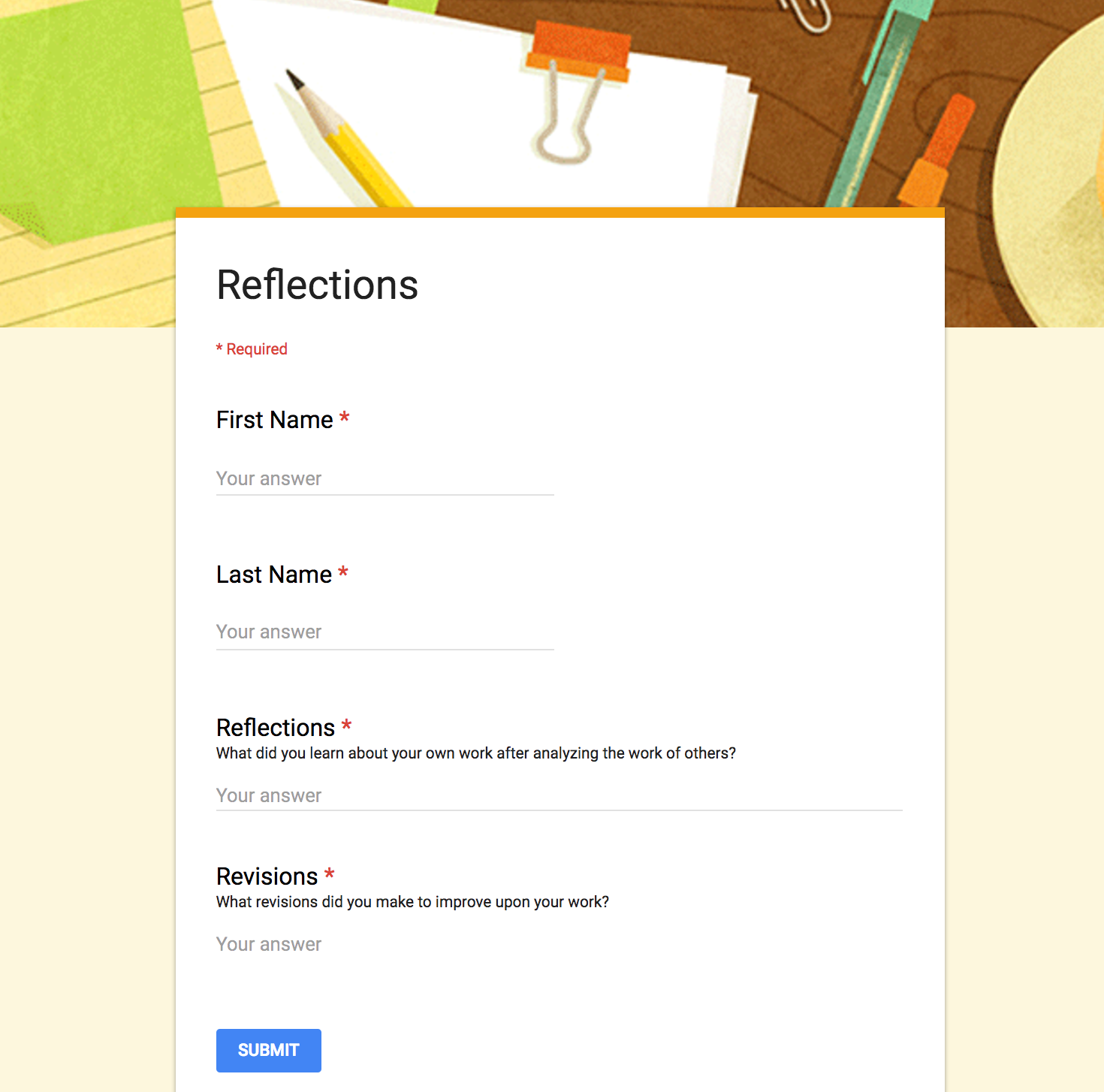
What better way to keep things quick and simple than by collecting reflective responses in a Google Form? I love that Google Forms populates all responses into one spreadsheet. No need to click on 175 different files to read 175 paragraphs. You can also use the same form throughout the year to have students reflect on different assignments, since all responses are timestamped. Below is an example of a form I use in my class for this purpose.


6. Google Classroom
When I want my students to write a short paragraph, I often turn to Google Classroom. Using its “Create Question” feature, I can quickly ask my students a reflective question, and they can post their replies. I can also decide if I want their answers to be viewable by only me, or if I want them to read and respond to each other’s ideas. What better way to promote reflection than to have students interact and evaluate each other’s responses?

7. Screencasts
Not only is screencasting a fantastic tool for reflection, it promotes fluency skills as well. Students can open a digital assignment on their computer and record themselves talking about what they’ve learned from the lesson as they show the project on their screen. Some popular screencasting tools include Screencastify, QuickTime, Explain Everything and PowerPoint 2016. This list includes both free and paid software. Some are Web-based or specific to Mac, iOS or Windows platforms.

8. Student-Designed Assessments
Since last year, I have given my students the option of designing their own assessments. I first ask them to consider what skills and content they learned from a particular unit. For example, after reading Martin Luther King, Jr.’s “I Have a Dream” and Dolores Huerta’s “Proclamation of the Delano Grape Workers for International Boycott Day,” I asked them to reflect (in small groups) on their takeaways from the lesson. They replied: “We learned many rhetorical strategies and how they help make a speech powerful and convincing.” They also realized that “words are as powerful as actions,” and “problems can also be solved without violence.” After pinpointing the goals of the lesson, we craft a rubric together to identify the criteria that will be used to evaluate their assessment. Students have fun working on this project, and I love seeing their creativity.

A Reflective Classroom
As a teacher, I want my students to become independent learners and critical thinkers. I truly believe that in order to learn, one has to be reflective. If you have found ways to encourage reflection in your students, please share your thoughts in the comments below.

Originally published on KQED's "In the Classroom" blog. Reproduced courtesy of KQED.

Monday, January 19, 2015

Beyond the Textbook: Virtual Field Trips for Science & Social Studies

"WP 35, SDr9776" by Stefan Dressler / CC BY-SA 2.5 
Have you ever wanted to take your students on a field trip around the world? What if they could visit the deserts and grasslands of Africa for free? Would you jump at the opportunity? On February 5, 2015 at 12pm Eastern Time, this opportunity will become a reality for your students.

Join +The Nature Conservancy's Charles Oluchina and science teacher Tyler DeWitt as they host this wonderful learning opportunity for students using Google’s Hangouts on Air. This 40 minute live broadcast, "Take a Virtual Field Trip to the Deserts and Grasslands of Africa," will transport your students to Burkina Faso to learn how one African farmer solved the challenges of desertifcation before heading to Kenya to learn the benefits of ecotourism and how grasslands are vital to the sustainability of the earth. Then, teachers will be able to extend the learning for their students through a first peek at +PBS LearningMedia's fabulous online collection of videos, interactive games, and lesson plans from the new PBS series EARTH A New Wild.

To sign up for this unique event, register at the Nature Works Everywhere website by clicking here.

Classes can watch the live virtual field trip or the archived copy by visiting The Nature Conservancy’s YouTube channel. This virtual field trip is the first in a series of future broadcasts that will examine the interconnectedness of people and nature. This program is designed for students in the third through eighth grades.

Through this program, students will gain a greater awareness and appreciation of the following key concepts:

  • Working with nature so nature works with us
  • People and Conservation
  • Desertification
  • Smart Development
  • Ecotourism
  • Habitat
  • Grasslands
  • Reforestation
  • Land preservation

+Nature Works Everywhere also have fabulous lesson resources for science, geography, and social studies classes. Some examples of what you can find on the Nature Works Everywhere website are listed below:

The Nature Conservancy is a non-profit organization that is dedicated to preserving the beauty of our natural world. That is why they created Nature Works Everywhere “to help students learn the science behind how nature works for us -- and how we can help keep it running strong.”

The partnership between us and nature has never been as important as it is now. Do your students understand where we belong in this fragile relationship? Let’s bring this lesson to life for them and help them become our future changemakers!

This blog post is sponsored by We Are Teachers.

Saturday, April 6, 2013

Giving Up My iPads for Chromebooks

I teach in a 1:1 iPad classroom, and I asked to pilot 1:1 Chromebooks for the next school year.

Truthfully, it wasn't an easy choice to make.  Secretly, I tried to squelch my nagging desire to do more with my students.  After all, I loved teaching with iPads, and I'm proud of all the work, creativity, and fun that came out of using them.  Besides, iPads are cool.

But I had to be truthful.  I had to be creative to use the iPad as a creation tool, and I had to find workarounds.  And there were things my students just couldn't do on them.

I teach four classes of 8th grade ELA, and in my classroom, I heavily emphasize writing, analysis, and critical thinking.  A keyboard obviously would've been nice, especially since my students pounded out over 2,600 blog posts over the course of six months alone (in addition to the essays, responses, and online discussions they write for me).  Many of my students cite the lack of a keyboard as a shortcoming, but my school couldn't justify this additional expense, seeing that thousands of dollars have already been spent to build our iPad carts.

Also, I wanted my students to fully utilize all the features of Google Docs - annotating text, commenting, and all the social and collaborative aspect that makes Google Docs - Google Docs.  But these features weren't available on the iPad.  (Note: some months after the writing of this post, the Google Drive app has been updated to include the ability to add comments. However, this iPad version is still lacking when compared to its full web capability.)

Additionally, I'd like my students to create Google Slides, which isn't possible so I had to resort to using other apps.  Then, I had to teach them how to export their work in order to import it to a LMS or a Dropbox folder.  Export work just to import it again?  It seems silly to me...and an efficient use of instructional minutes.

I also wanted my students to create content on Glogster, Nanoogo, Storybird, GoAnimate, and many of the myriad of apps out there that don't work on the iPad.  (Read my blog post on "Using GoAnimate to Fight Bullying" on how we used this great video animation tool in the classroom.)
I can see iPads, with its learning apps, having a greater role in the elementary classroom, and though there are also some great apps for the secondary classroom, it's still a device designed to consume content rather than to create it.

For secondary students, this isn't enough - not for a rigorously, academic curriculum called for by the Common Core.  I've always believed that writing should be a shared, cross-curricular responsibility, and using Google Docs with its full potential is better suited to meet this essential need.

Can students fully utilize Google's core productivity apps with the iPad the way they can on a computer/laptop/netbook?  No.  That's why I wanted to bring Chromebooks into my classroom.  But will my students still use iPads?  Absolutely.

Luckily for me, my current iPad cart will become available for checkout, and I'll book it when I want my students to create digital media projects - on iMovie, Audioboo, Zoodle Comics, and J&C's PhotoStory to name a few.  (Read my blog post on "How to Use Zoodle Comics in the Classroom" for ideas.)  However, for every day use, I plan to fully utilize Google Apps for Education on the Chromebooks, the way it was meant to be used.

Monday, April 1, 2013

Using GoAnimate to Fight Bullying


"Student Working on a Project" / Copyright 2013 by Alice Chen
In the classroom, student engagement is essential to learning.  Without this component, students are merely going through the motions.  When I discovered GoAnimate, I realized immediately that it was a great product that my students and I would love.  In just under 10 minutes, I was able to quickly create a professional-looking video to jumpstart one of the many professional development trainings I provide to other teachers at my site.  Soon, I was also using it to teach new concepts in my classroom.  Naturally, the next step was to introduce it to my students.


In my classroom, we not only read stories, but we also analyze them and make connections between the world of literature and the world in which my students live.  For example, bullying is unfortunately a reality in schools today, and to address this issue, I challenged my students to create a Public Service Announcement (PSA) on what it means to take a stand against bullying.  They were to choose an upstander (someone who speaks up against bullying) from literature, history, or modern times.  It could be a literary character from many of the stories they analyzed throughout the semester, a political leader they studied during our speech unit, or even an acquaintance they knew.


For their PSA, my students first had to write a script that included the emotions, actions, and dialogue of their characters.  Then they had to bring their script alive through the use of multimedia.  At this point, I gave them a choice of creating a podcast, an iMovie, or a GoAnimate video.  Though my students had never tried GoAnimate before, many were immediately drawn to using it and the majority of them chose this as their vehicle of expression.  


As my students worked, I can hear the excitement in their voices as they argued (in a friendly fashion) which characters and settings to use.  In the past, when my students use a new technology tool for an assignment, I have to front-load the activity by creating my own tutorial, which is obviously very time-consuming.  Luckily, GoAnimate provided a quick and easy tutorial on their website that modeled how to create animation videos.  However, most students didn’t even have to watch the tutorial, and they went right to work, easily maneuvering GoAnimate’s site without any need for guidance.

After my students finished their GoAnimate PSA’s, they couldn’t wait for me to show them to the rest of the class.  Also, they were truly interested in viewing each other’s work as well.  In the end, I was pleased with the quality of work my students created, and they had so much fun using GoAnimate that they didn’t even realized that they were also learning along the way.

This post is also published on GoAnimate's Educator Experiences blog.